


Anycubic Kobra is an affordable entry-level 3D printer with many useful features. Anycubic has their own "Photon Workshop" slicer, but this slicer is only suitable for resin 3D printers like the Photon Mono X 6K . The most popular slicer for Kobra, and also recommended by Anycubic, is Cura.
To get the perfect Cura profile for the Anycubic Kobra, you need to determine the machine parameters, set the print settings for the appropriate media being used, and most importantly, calibrate them.
Cura often has very good default profiles for most 3D printers on the market, but they still need to be calibrated for the specific device and filament being used. Also, these profiles are usually only available some time after the release of the device. If you are looking for the perfect Cura settings for the Anycubic Kobra, you will find them in this article.
1 How to create a profile for Anycubic Kobra in Cura
1.1 PLA settings in general
1.2 ABS settings in general
1.3 TPU settings in general
2 Best Cura Settings for Anycubic Kobra
2.1 Print temperature
2.2 Print bed temperature
2.3 Print speed
2.4 Layer height
2.5 Flow
2.6 Retraction
2.7 Filling
2.8 First layer
3 How to calibrate Anycubic Kobra
3.1 How to calibrate the print temperature
3.2 How to calibrate filament flow
3.3 How to calibrate retraction
4 Anycubic Kobra perfect for beginners
5 Conclusion
How to create a profile for Anycubic Kobra in Cura


Creating a profile for a new 3D printer in Cura is easy. You just need to pay attention to the machine settings and adjust the print settings according to the material you are using.
Let's look at the machine settings first, and then the individual materials and their print settings.
To create a new profile for Anycubic Kobra, follow these steps:
At the top of the Cura interface, click "Settings", then "Printer" and "Add Printer...".
This will open a pop-up menu where you can add new printers. Select "Add non-network printer".
Scroll down, open the "Custom" menu and select "Custom FFF printer".
Name the new 3D printer "Anycubic Kobra" in the menu on the right.
This will open the machine settings for the newly created 3D printer. Enter the following values in them:
Printer settings:
X (Width) = 222mm
Y (Depth) = 222 mm
Z (Height) = 252mm
Printing Form Shape = Rectangular
Start Center = No
Heated Bed = Yes
Heated Build Volume = No
G-code flavor = Marlin
Print head settings:
X min = -20 mm
Y min = -10 mm
X max = 10 mm
Y max = 252 mm
Number of extruders = 1
Apply extruder offsets to GCode = Yes
Initial G-code = Leave Defaults
End G-Code = Leave Defaults
Nozzle settings:
Nozzle size = 0.4mm
Compatible Material Diameter = 1.75mm
Nozzle offset X = 0.0 mm
Nozzle offset Y = 0.0 mm
Number of cooling fans = 0
Extruder Start G-code = Leave Defaults
Extruder end G-code = Leave default values
Then close all menus.
Cura then automatically creates multiple profiles for a wide range of accuracy. The accuracy varies from 0.06 mm to 0.6 mm. However, these profiles are not yet matched to the individual filaments and printer and give sub-optimal results.
For perfect results, you need to adjust and calibrate the print settings according to the filament you are using. In the following lines I will show you the best settings for PLA , ABS and TPU.
PLA parameters
PLA is one of the easiest 3D printing materials to use. It can be processed on any FDM 3D printer and is very forgiving.
Below are the default PLA settings for Anycubic Kobra. However, I advise you to always calibrate your settings. More on this later.
These are the best settings for PLA on Anycubic Kobra :
Print temperature: 200°C
Print bed temperature: 60 °C
Print speed: 50mm/s
Pull: 6 mm at 40 mm/s
First layer: 0% cooling, 100% extrusion width, 100% layer height
ABS settings
ABS is much more demanding than PLA. Not only do you need higher temperatures, a constant ambient temperature is also important so that the filament does not deform during cooling.
For maintaining a uniform ambient temperature, the Anycubic Kobra is best suited. In this article you will find a detailed test. If you're having issues with print adhesion, Magigoo can help.
Here are the best settings for ABS with Anycubic Kobra :
Print temperature: 230°C
Print bed temperature: 80 °C
Print speed: 50mm/s
Pull: 6 mm at 40 mm/s
First layer: 0% cooling, 140% extrusion width, 100% layer height
TPU parameters
Thanks to the Anycubic direct drive extruder, Kobra can process TPU very well. However, due to the flexibility of the filament, print settings are very important to ensure that the filament does not tangle. It's even more important to calibrate these settings as each TPU filament can behave slightly differently depending on the manufacturer.
Here are the optimal settings for TPU printing with the Anycubic Kobra :
Print temperature: 230°C
Print bed temperature: 60 °C
Print speed: 50mm/s
Pull: 8 mm at 60 mm/s
First layer: 0% cooling, 140% extrusion width, 100% layer height
Best Cura Settings for Anycubic Kobra
In this part of the article, you will learn in detail what the individual settings do and which settings work best for different threads. Next, we'll look at calibrating the most important settings so you can optimize the defaults listed here for your system.
Print temperature

The print temperature depends mainly on what filament you are using. An incorrect print temperature can be the cause of many of the most common errors. These include over- and under-extrusion, stringing, and other extrusion problems such as spotting or dripping.
Thermostats of different models of 3D printers sometimes differ greatly in their efficiency. For example, the ideal temperature for filament may differ by several degrees for the Anycubic Kobra than for the Ender 3 S1.
For PLA, the optimum temperature for the Anycubic Kobra was 200°C. Depending on the filament manufacturer, the ideal temperature can be between 190 and 200 °C. You can find out how to find the ideal temperature in the calibration section of this article below. Otherwise, start at 200 °C and optimize in 5 °C increments.
ABS and TPU require slightly higher temperatures, from 220 to 250 °C. For me, the ideal temperature for both materials was 230°C.
Best Temperatures to Print Anycubic Kobra in Cura:
PLA: 190-200°C
ABS: 220-250°C
TPU: 220-250°C
Platen temperature
Anycubic Kobra's print surface is very good and provides very good print adhesion for most filaments. However, to take advantage of this benefit, the correct bed temperature must be set. Too low a print bed temperature may result in poor print bed adhesion, and too high a temperature may result in other print defects such as warpage or elephant foot.
The PLA filament does not require heating of the printed layer. However, you will get the best results if you set the print bed temperature to around 60°C. If you are having problems with poor plate adhesion, you can also increase the plate temperature slightly or use an auxiliary tool such as Magigoo or an auxiliary print such as Raft or Brim.
ABS requires a slightly higher print bed temperature. For Anycubic Kobra, 90-100°C is a good choice. Always remember that ABS shrinks a lot when it cools and can even crack. Therefore, the ambient temperature should be as uniform as possible and above normal room temperature. A suitable housing for the Anycubic Kobra can be found here.
I only tested one type of TPU on the Anycubic Kobra, but Anycubic also recommends 60°C, the same temperature at which I got very good results. However, you should not rise much above this temperature, but it is better to look for the optimal temperature in the range between 50 and 60 ° C.
Optimal print bed temperatures for Anycubic Kobra in Cura:
PLA: 55-60°C
ABS: 90-100°C
TPU: 50-60°C
Print speed

The lightweight direct drive Anycubic Kobra extruder allows you to achieve high print speeds without the risk of vibration. Although the print speeds used in practice are much lower than theoretically possible, they are intended primarily for rough prototypes rather than fine detailing.
Anycubic Kobra provides print speeds of 40 to 60 mm/s for most filaments. Especially for PLA and ABS, these are proven standard values.
For TPU, print speed should be optimized in close relation to retraction settings, as the flexibility of the filament affects where the ideal print and retraction speed is.
If you want to get closer to the optimal print speed, it is advisable to use coarse steps of 5mm/s and then smaller steps of 2mm/s.
Best print speeds for Anycubic Kobra in Cura:
PLA: 50mm/s
ABS: 50mm/s
TPU: 50mm/s
Layer Height

In 3D printing, layer height is a measure of the accuracy of how smooth an object's surface becomes and how much detail remains visible. The lower the layer height, the more accurate the print. However, with a low layer height, the print time also increases significantly.
After creating Anycubic Kobra as a new printer, Cura will create the following profiles by default:
Extra fine 0.06 mm
Thin 0.1mm
Regular 0.15mm
Roughing 0.2 mm
Super fast 0.3mm
Coarse 0.4 mm
Very coarse 0.6 mm
The thickness of the layer depends on what purpose you are using the object for. If it is mainly decorative, then, of course, a thinner layer should be chosen. For rough prototypes or parts that have only a mechanical purpose and do not require a beautiful appearance, you can increase the layer height in favor of faster print times.
Optimal Layer Height for Anycubic Kobra in Cura:
Decorative objects: 0.08 and 0.12 mm
Standard: 0.16 and 0.20 mm
Coarse, fast prints: 0.24 and 0.28 mm
Flow

With the flow rate, you can adjust the amount of thread extruded per second. If you set values greater than 100%, more filament will be extruded, if you set smaller values, less filament will be extruded.
The flow rate of the 3D printer is multiplied by the set value. This solves many extrusion problems.
Generally, an initial value of 100% is correct in most cases. However, sometimes the extruder needs to be calibrated and the value needs to be set higher or lower. The best way to calibrate this value is described later in this article.
Best flow rate for Anycubic Kobra in Cura:
Default value: 100%
For over extrusion: 90% to 99
For under extrusion: 101% to 110%.
retraction

The most common print defects include the formation of threads (thongs) and, in extreme cases, the formation of large spots and pimples. Some filaments are more prone to filament formation than others. Either way, these problems can be brought under control with the right retraction settings.
If there is excess material in the nozzle opening when it moves over an object without extruding the filament, fine hairs of filament form between the start and end of the movement. Feeding the filament prevents this by drawing the filament back into the nozzle at a certain speed and a certain distance.
However, for this to work, the settings must be adapted to the respective 3D printer and filament being used. There are big differences between different types of filament and 3D printers. Even 3D printers of the same model from the same manufacturer are slightly different from each other.
Therefore, the values given here are rough guidelines to give you a good starting point for optimization. How to do this is described later in this article.
Best retraction settings for Anycubic Kobra in Cura:
PLA: 6 mm at 40 mm/s
ABS: 6 mm at 40 mm/s
TPU: 8mm at 60mm/s
Filling

Although infill is an important setting in print settings, it is independent of the 3D printer you are using. The pattern and density of the filler determine the stability of the object. Depending on the purpose of the printed object after printing, the correct pattern and density should be selected here.
High stability (for stable objects):
Cubic
cubic subdivision
Octet
Gyroid
Average stability (for standard objects):
Net
triangles
Trihexagonal
Low stability (for decorative objects):
lines
Zigzag
Lightning
In addition to the infill pattern, density also determines how stable an object will end up being. A density of 0% means the object becomes hollow, a density of 100% results in a solid object. For most objects, a density of 15 to 25% is ideal.
Best fill density for Anycubic Kobra in Cura:
Decorative objects: 0-15%
Standard objects: 15-50%
Durable objects: 50-100%
First layer
The settings for the first print layer have a great influence on the adhesion quality of the print layer. Although the adhesion of the Anycubic Kobra print layer is very good, incorrect first layer settings can ruin the print.
With a thicker first layer, the adhesion of the printed layer can be increased. In most cases the standard layer thickness is sufficient to achieve good results. However, if you are having problems with the layer thickness, first try increasing the layer thickness a little before resorting to other means.
The thicker the first layer, the slower it cools down. This gives the hot filament more time to bond to the surface of the printed layer. The same applies to line width. If you increase the line width, you will also improve the adhesion of the printed layer.
The time required for the thread to cool down can be increased with other settings. You can increase the print temperature, decrease the print speed, or increase the print bed temperature.
Best first layer settings for Anycubic Kobra in Cura:
Layer thickness: 100-200% of normal layer thickness (higher values in case of poor adhesion of the printed layer)
Line width: 100-200% of normal line width (higher values in case of poor adhesion of the printed layer)
Print temperature: Same as the rest of the object, or 5-10°C higher for better adhesion of the printed layer.
Print speed: 50% of normal print speed
Flow: 100-110% (higher values in case of poor adhesion of the printed layer)
How to calibrate Anycubic Kobra
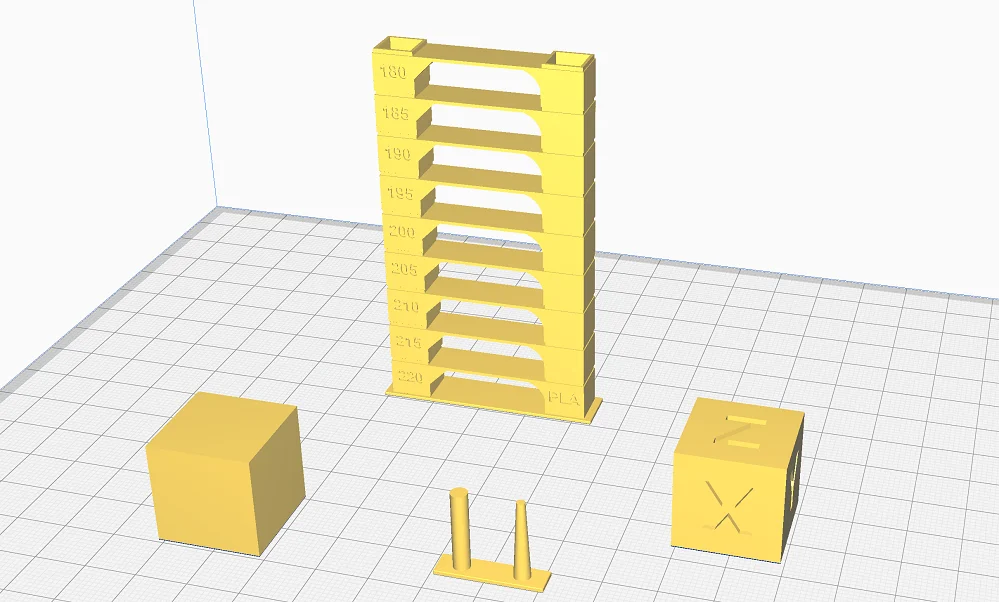
The settings you have already seen in this article are very good recommendations for the Anycubic Kobra. However, you should calibrate the most important settings - print temperature, flow rate and retraction for each filament. Even the smallest deviations can spoil the result.
You will need suitable objects for calibration. On portals such as Thingiverse, you can find suitable objects for most printing errors that can be quickly printed. They provoke the corresponding error so that you can quickly find the correct setting.
But Cura also has a handy "Calibration Shapes" plugin. If you have installed this plugin, you can download and print suitable calibration objects for various settings through the user interface.
How to calibrate the print temperature
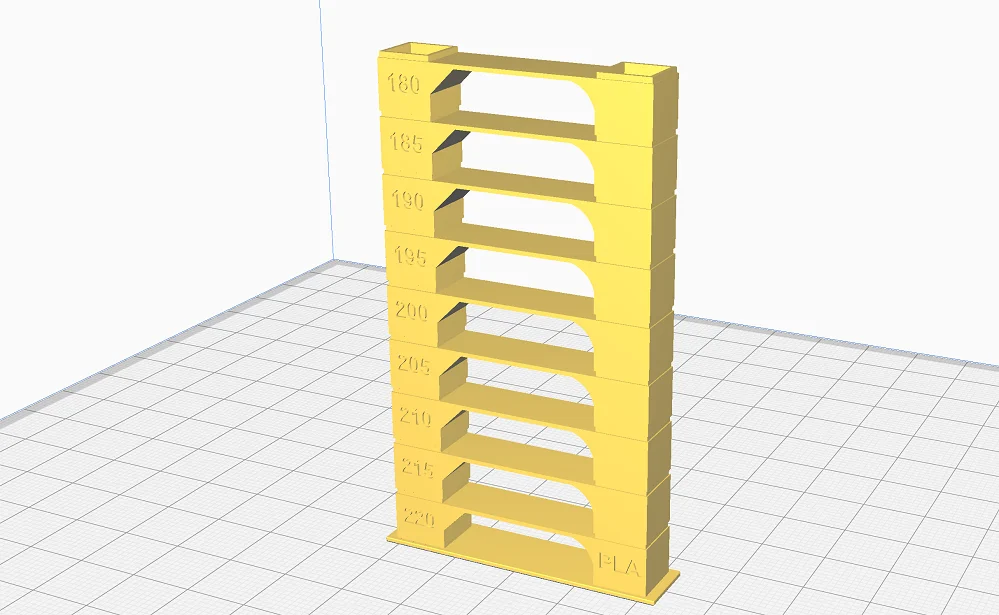
To calibrate the print temperature, it is best to use the so-called temperature tower. This tower consists of several levels, each of which uses a different print temperature. The floors are designed in such a way that they provoke errors such as string stringing. This way you can quickly see which temperature is ideal.
The tower has so many floors that you can test the entire temperature range of the filament. You can then easily determine the correct temperature by the absence of printing errors on the corresponding floor.
If this is too complicated for you, since you also need a script to change the temperature (can be configured in Cura via the UI), you can also use a calibration object to pull in. Just print it several times and change the temperature in small increments of 5°C each time. This way you won't find all the print errors that may be caused by the wrong temperature, but you will still quickly find the correct temperature when comparing individual objects to each other.
How to calibrate filament feed
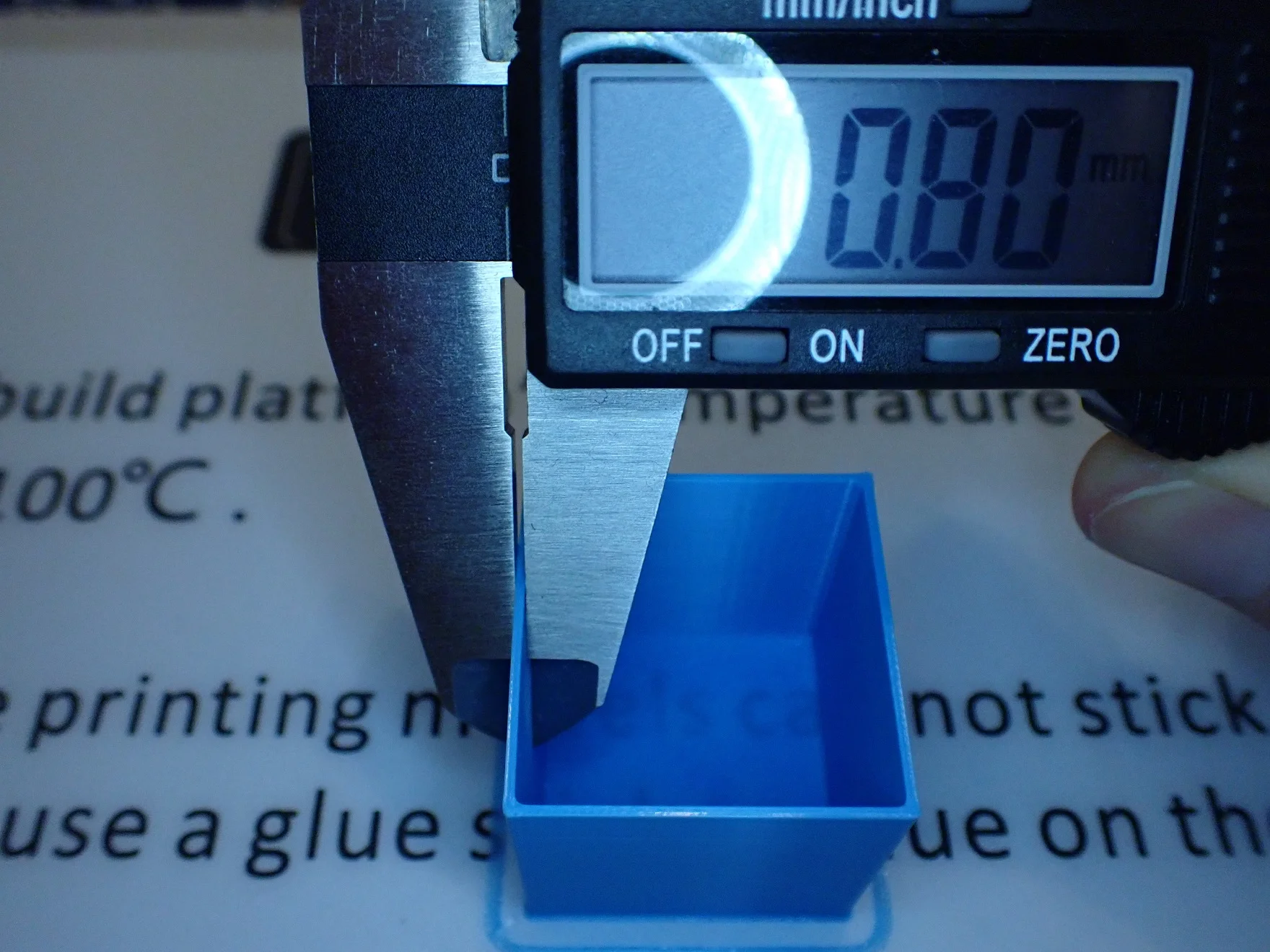
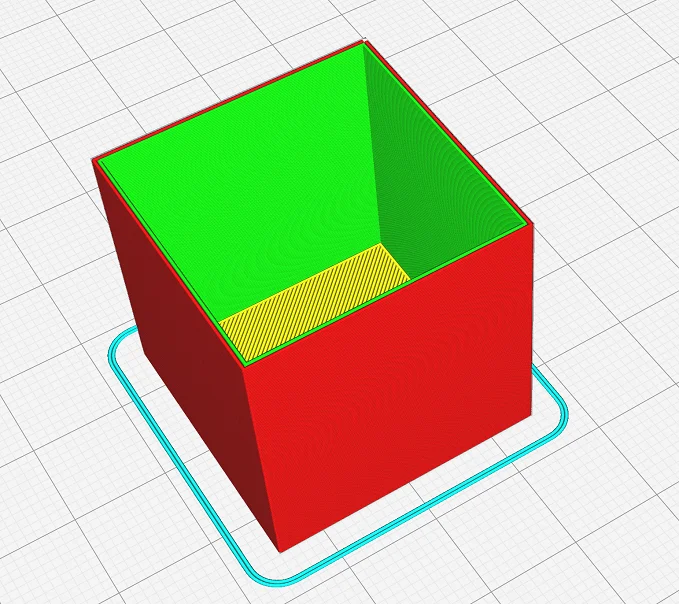
The exact same calibration objects for the Anycubic Kobra as for other 3D printers are used to calibrate the flow rate. The best object for flow rate calibration is a hollow cube.
Specify double wall printing with 0% infill and no top layers. This way you can measure the wall thickness immediately after printing is completed.
With a caliper, wall thickness can be easily measured to calculate deviations in flow velocity. If the wall thickness is too high, the flow must be reduced accordingly, if the wall thickness is too small, the flow must be increased.
How to calibrate retraction
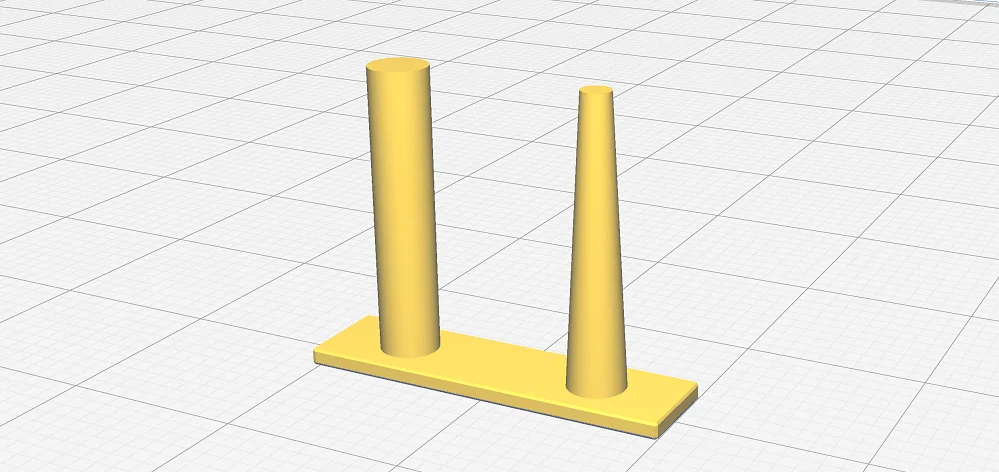
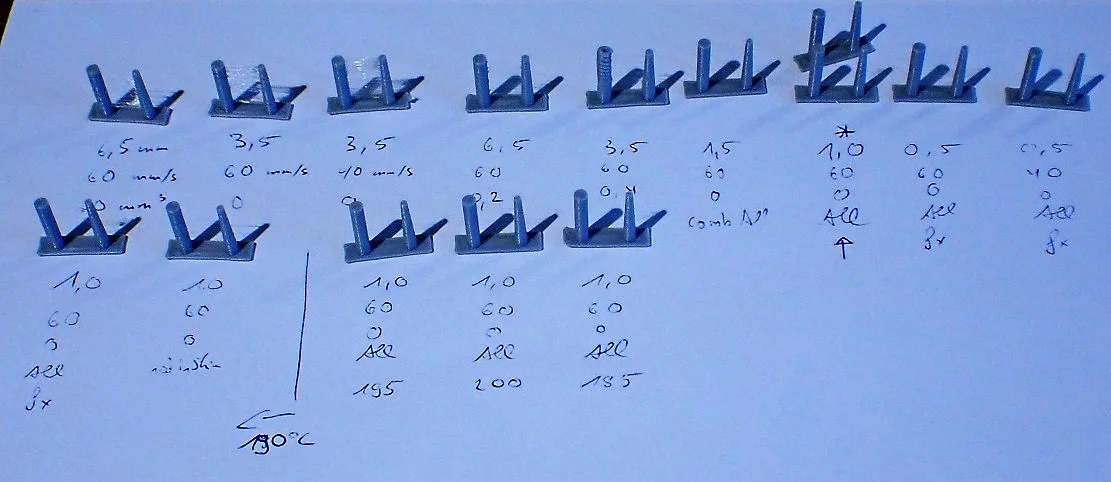
Retraction settings have a very large effect on print quality. Too much or too little retraction distance or inaccurate retraction speed can result in severe stitching and other printing errors.
Luckily, calibrating these two retract settings is pretty easy. My favorite is the calibration object from Cura's Calibration Shapes plugin. It's so small that you can print it out in minutes, and it does a good job of showing if the settings are correct or need to be optimized.
Start with the guideline values in this article and work your way up to optimal values in small increments. The retraction distance should be adjusted in 0.1 mm increments and the retraction speed in 5 mm/s increments. Remember that you should only change one value at a time to know which setting caused the change.
Anycubic Kobra is perfect for beginners
If you want to learn about the correct settings before buying an Anycubic Kobra with the help of this article, then you are one of the few who do!
However, if all those values and calibrations put you off, don't shy away from 3D printing in general, nor the Anycubic Kobra. Not only is this 3D printer affordable, but it's also perfect for beginners. It works very accurately, has many useful features and forgives many mistakes in operation. This makes it pretty easy to find the right settings if the defaults given in this article aren't perfect yet.
Conclusion
With the Cura settings for the Anycubic Kobra in this article, you should have very good initial values for your first proofs.
The recommendations given may already be perfect for your printer and the media you are using, but in any case, I would advise you to calibrate the most important parameters. Calibration takes very little time and is simplified by existing calibration objects. Thus, it is not difficult to bring the print result to perfection without much effort.